

Should You Upgrade to Windows 11? Full Guide

Introduction
Windows 10 is reaching its end. Microsoft will stop giving security updates after October 2026. This leaves many users with a big question. Should you upgrade to Windows 11 now? Or should you wait a little longer?
This guide will help you decide. We will cover everything you need to know. We will talk about system requirements. We will also give you a step-by-step plan. By the end, you will know if you should upgrade to Windows 11.
The decision is not always easy. Some PCs are ready for the new OS. Others are not. But one thing is clear. Staying on Windows 10 is risky after support ends. So, let us explore your options. Let us find out if you should upgrade to Windows 11 today.
What Is Windows 11?
Windows 11 is Microsoft’s newest operating system. It came out in 2021. It is the successor to Windows 10. Microsoft designed it to be modern and secure. It has a fresh new look. The Start menu is now in the center. The corners are rounded. The whole interface feels cleaner.
But Windows 11 is not just about looks. It has many new features inside. These features aim to make you more productive. They also aim to keep you safer online. Microsoft built Windows 11 with modern hardware in mind. This means it works best on newer PCs.
So, should you upgrade to Windows 11? For many people, the answer is yes. It offers a better experience overall. It is faster and more secure. It also gets regular updates from Microsoft. These updates fix bugs and add new features.
However, the upgrade is not for everyone. Some older PCs cannot run it. Others might struggle with performance. That is why you need to check your system first. This guide will show you how.
Why Upgrade to Windows 11?
There are many reasons to upgrade to Windows 11. Let us look at the biggest ones.
Better Security
Security is the top reason to upgrade to Windows 11. The new OS has stronger protections. It requires TPM 2.0 and Secure Boot. These features block many types of attacks. They protect your data from hackers.
Microsoft also gives regular security patches. These patches fix new threats quickly. Without them, your PC is vulnerable. So, if you care about safety, you should upgrade to Windows 11.
Modern Interface
Windows 11 looks and feels fresh. The centered Start menu is clean. The new taskbar is simple. The overall design is more consistent. These changes make the OS easier to use.
Many users find the new look pleasing. It feels more modern than Windows 10. It also works better with touchscreens. So, if you like new designs, you will enjoy Windows 11.
Performance Gains
Windows 11 is faster on modern hardware. It manages resources better. It prioritizes tasks more intelligently. This leads to quicker boot times. Apps launch faster too.
Laptops also see battery improvements. Windows 11 uses less power in the background. So, your battery lasts longer. These performance boosts are real. They make daily computing smoother.
Gaming Enhancements
Gamers get big benefits from Windows 11. It supports DirectX 12 Ultimate. It also has Auto HDR and DirectStorage. These features improve graphics and load times.
Games look better and run smoother. They also load much faster. So, if you are a gamer, you should upgrade to Windows 11. It is the best Windows for gaming right now.
Continued Support
Windows 10 support ends in October 2026. After that, no more security updates. This is a huge risk. Hackers will target unpatched systems.
Upgrading to Windows 11 ensures you get ongoing support. Microsoft will keep updating it for years. So, you stay protected and up-to-date.
System Requirements for Windows 11
Before you upgrade to Windows 11, check your PC. The new OS has strict requirements. Many older machines do not meet them. Here are the minimum specs:
Processor: 1 GHz or faster with 2 or more cores. It must be a compatible 64-bit processor. Intel 8th Gen or newer is recommended. AMD Ryzen 2000 or newer also works.
RAM: At least 4 GB. But 8 GB is better for smooth performance. More RAM means faster multitasking.
Storage: 64 GB or larger storage device. You need this much free space for the installation.
System Firmware: UEFI with Secure Boot capability. This replaces the old BIOS system.
TPM: Trusted Platform Module version 2.0. This is a security chip on your motherboard.
Graphics Card: DirectX 12 compatible with WDDM 2.0 driver.
Display: Greater than 9 inches with 720p resolution.
Most PCs made after 2018 meet these requirements. But you should still check. Use the PC Health Check tool from Microsoft. It tells you if your PC is compatible.
If your PC does not meet the requirements, you have options. You can enable TPM in the BIOS. You can also use workarounds. But these are not recommended for most users.
How to Check Compatibility
Checking compatibility is easy. Follow these steps:
-
Download the PC Health Check app. Get it from Microsoft’s website.
-
Install and run the app. Open it after installation.
-
Click “Check now”. The app scans your system.
-
Review the results. It tells you if you can upgrade to Windows 11.
If your PC passes, you are ready. If it fails, the app tells you why. Common issues include missing TPM 2.0 or an unsupported CPU.
You can also check through Windows Update. Go to Settings > Update & Security > Windows Update. Click “Check for updates”. If Windows 11 is available, you will see it.
Pros and Cons of Upgrading
Let us weigh the good and the bad. This will help you decide if you should upgrade to Windows 11.
Pros
-
Stronger security with TPM 2.0 and Secure Boot
-
Modern interface that is clean and consistent
-
Better performance on newer hardware
-
Improved gaming with DirectX 12 Ultimate
-
Ongoing support from Microsoft
-
Better multitasking with Snap Layouts
-
Faster wake-from-sleep and updates
Cons
-
Strict hardware requirements leave many PCs behind
-
Missing features like taskbar repositioning
-
Learning curve for the new interface
-
Potential bugs in early versions
-
Ads and bloatware in some editions
For most users, the pros outweigh the cons. The security benefits alone are worth it. But if you have older hardware, you might struggle.
Is the Upgrade Free?
Yes, the upgrade is free for most users. If you have a genuine Windows 10 license, you get Windows 11 for free. Microsoft offers this through Windows Update. Your digital license carries over.
You do not need to buy a new license. The upgrade does not cost anything. This makes it an easy choice for many.
However, there are exceptions. If you are building a new PC, you need a license. If you are moving from Home to Pro, you pay. But for most Windows 10 users, it is free.
So, the financial barrier is low. You should upgrade to Windows 11 without spending money.
Step-by-Step Upgrade Guide
Ready to upgrade to Windows 11? Follow these steps:
Step 1: Back Up Your Data
Always back up your files first. Use OneDrive or an external drive. Create a system image if you want extra safety. This protects your data if something goes wrong.
Step 2: Check Compatibility
Run the PC Health Check app. Make sure your PC meets all requirements. If it does not, fix the issues first.
Step 3: Update Windows 10
Make sure Windows 10 is fully updated. Go to Settings > Update & Security. Install all pending updates. This ensures a smooth upgrade.
Step 4: Choose Your Upgrade Method
You have three main options:
-
Windows Update: Go to Settings > Update & Security > Windows Update. Click “Check for updates”. If Windows 11 is there, click “Download and install”.
-
Installation Assistant: Download the tool from Microsoft. Run it as administrator. Follow the on-screen instructions.
-
ISO File: Download the Windows 11 ISO. Mount it and run setup.exe. Choose “Keep personal files and apps”.
Step 5: Complete the Setup
After installation, sign in to your account. Check for updates again. Install the latest drivers. Customize your settings.
The whole process takes about 30 to 60 minutes. Your files and apps stay intact.
Common Upgrade Problems and Fixes
Sometimes the upgrade does not go smoothly. Here are common issues and their fixes:
“This PC can’t run Windows 11” : Enable TPM 2.0 and Secure Boot in the BIOS. This is often the main culprit.
Upgrade not showing : Update Windows 10 fully first. Then check again.
Installation failed : Free up disk space. Disconnect unnecessary devices.
Slow performance after upgrade : Update your drivers. Check for the latest Windows updates.
Missing features : Some features are region-specific. Check your settings.
If you still have issues, visit Microsoft’s support site. They have detailed troubleshooting guides.
Should You Upgrade Now or Wait?
This is the big question. Should you upgrade to Windows 11 immediately? Or should you wait?
Upgrade Now If:
-
Your PC meets all requirements
-
You want the latest security features
-
You like modern interfaces
-
You are a gamer
-
You use Microsoft 365 and Teams
Wait If:
-
Your PC is older and unsupported
-
You rely on legacy applications
-
You need time for testing
-
You are comfortable with Windows 10 for now
Windows 10 still works until October 2026. But after that, it is risky. So, you have time. But do not wait too long.
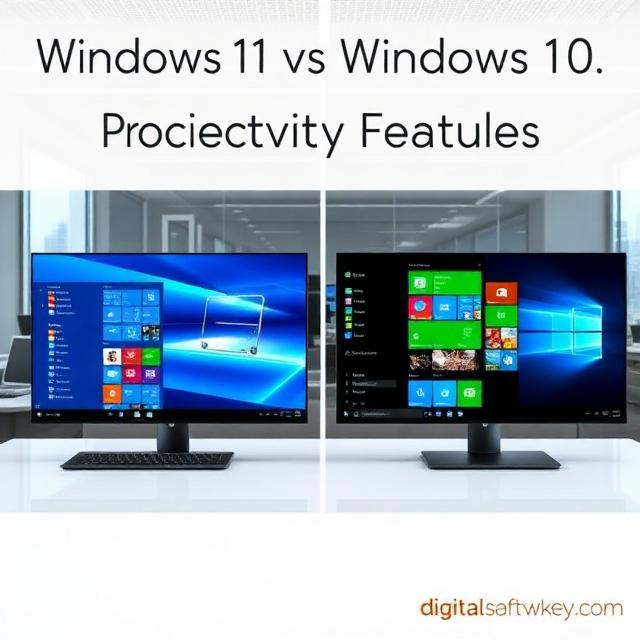
Windows 11 vs. Windows 10
How does Windows 11 compare to Windows 10? Let us break it down:
| Feature | Windows 10 | Windows 11 |
|---|---|---|
| Interface | Traditional | Modern, centered |
| Security | Good | Excellent with TPM 2.0 |
| Performance | Good | Better on new hardware |
| Gaming | Good | Great with DirectX 12 |
| Support | Ends Oct 2026 | Ongoing |
Windows 11 is clearly the future. It offers more features and better security. Windows 10 is still good, but it is aging. So, upgrading is the logical choice for most.
Getting Windows 11 from DigitalSoftwareKey
If you need a new license, consider DigitalSoftwareKey. They offer genuine Windows 11 keys at great prices. You can buy a key and upgrade to Windows 11 easily.
DigitalSoftwareKey is a trusted source. They provide instant delivery via email. Their keys work worldwide. They also offer excellent customer support.
So, if you are building a new PC, visit DigitalSoftwareKey. Get your Windows 11 license today. It is quick and affordable.
Frequently Asked Questions (FAQs)
Is upgrading to Windows 11 free?
Yes, it is free. If you have a genuine Windows 10 license, you get Windows 11 for free. The upgrade comes through Windows Update. Your digital license carries over automatically.
Will I lose my files during the upgrade?
No, you will not lose your files. The standard upgrade keeps all your personal files and apps. But you should still back up your data. It is always better to be safe.
Why can’t I upgrade to Windows 11?
Your PC might lack TPM 2.0 or Secure Boot. Or your CPU might be unsupported. Use the PC Health Check app to find the exact issue. Then fix it or consider new hardware.
How long does the Windows 11 upgrade take?
It usually takes 30 minutes to 1 hour. The time depends on your hardware and internet speed. Faster PCs complete it more quickly.
Can I go back to Windows 10 after upgrading?
Yes, you can go back within 10 days. Go to Settings > Recovery. Select “Go back to Windows 10”. After 10 days, you need to reinstall Windows 10 manually.
Final Verdict: Should You Upgrade?
So, should you upgrade to Windows 11? For most people, the answer is yes. The benefits are clear. Better security, modern design, and improved performance. These make Windows 11 a worthwhile upgrade.
If your PC meets the requirements, go for it. The upgrade is free and easy. You get a safer and more enjoyable experience. Your workflow will improve. Your games will run better.
If your PC is older, you have choices. You can enable TPM in the BIOS. You can use workarounds. Or you can buy a new PC. But staying on Windows 10 is not a long-term solution.
The clock is ticking. Windows 10 support ends in October 2026. After that, you are on your own. So, plan your upgrade now. Do not wait until the last minute.
Conclusion
Upgrading to Windows 11 is a smart move. It offers stronger security, a modern look, and better performance. The upgrade is free for most users. It is also straightforward to do.
We covered everything in this guide. We talked about system requirements. We discussed the pros and cons. We gave a step-by-step plan. We also answered common questions.
Now, it is your turn. Check your PC’s compatibility. Back up your data. Then upgrade to Windows 11. You will not regret it. Your PC will feel new again. You will be safer online.
If you need a new license, visit DigitalSoftwareKey. They offer genuine keys at great prices. Get your Windows 11 key today. Enjoy the best Windows experience possible.
The future is Windows 11. Do not get left behind. Upgrade now and stay secure.