


Microsoft Office Troubleshooting: 7 Tips for Excel Pivot Tables

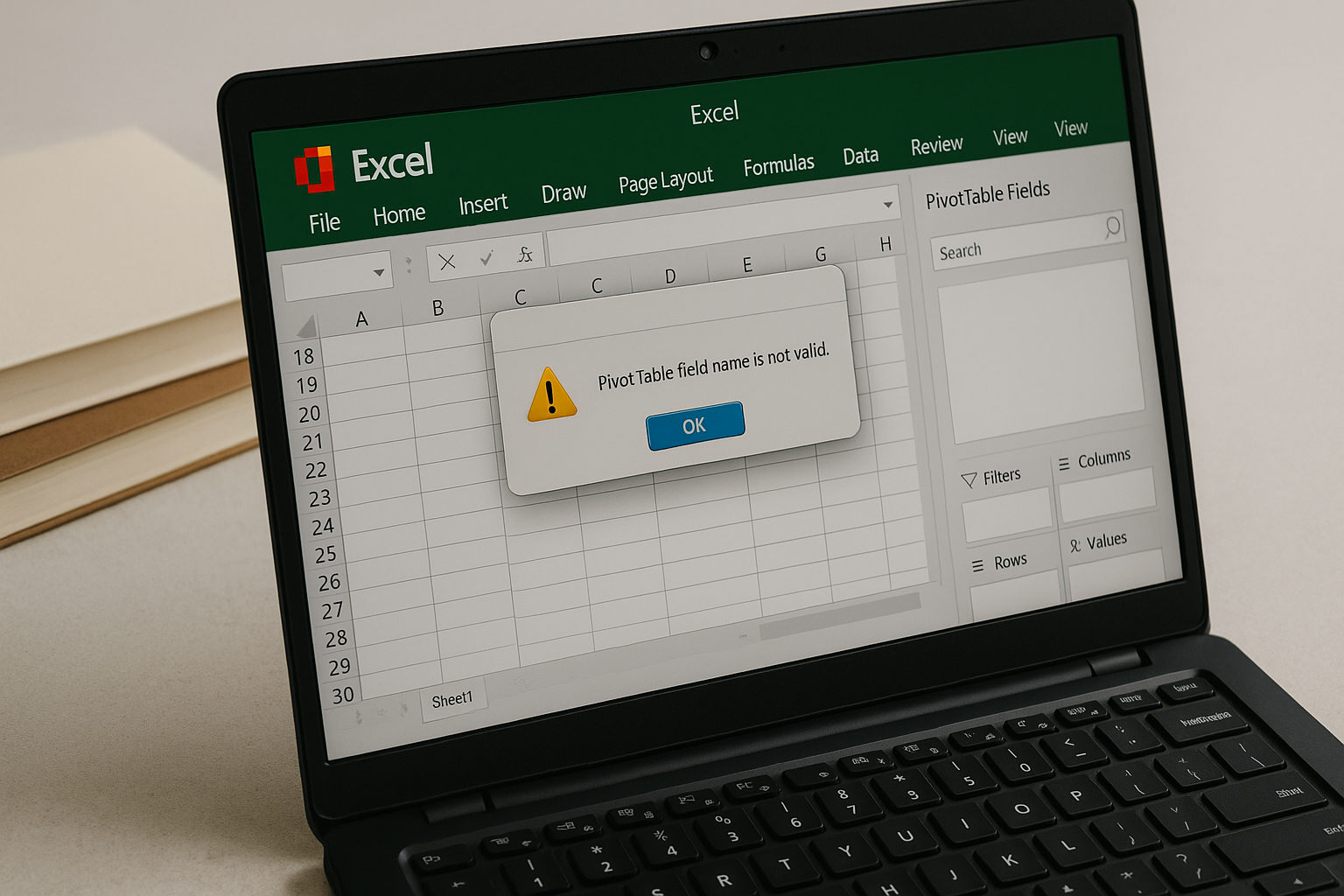
Table of Contents
- Understanding Common Excel Pivot Table Errors
- Effective Microsoft Office Troubleshooting: Tips to Resolve Pivot Table Issues
- Tip 1: Refreshing Your Pivot Table to Resolve Data Issues
- Tip 2: Checking Your Data Source for Accuracy
- Tip 3: Grouping Data for Better Pivot Table Performance
- Tip 4: Using the Right Summary Functions for Your Needs
- Tip 5: Adjusting Filter Settings for Accurate Results
- Tip 6: Exploring Excel’s Built-in Troubleshooting Tools
- Tip 7: Cleaning Your Data for Optimal Pivot Table Functionality
- Conclusion: Mastering Microsoft Office Troubleshooting for Excel Pivot Tables
Understanding Common Excel Pivot Table Errors
Microsoft Office Troubleshooting is often a necessity for users trying to navigate the complexities of Excel, especially when it comes to pivot tables. Ever tried to analyze data with a pivot table, only to find it’s acting up? You’re not alone! Many users face hurdles that can lead to frustration.
Common errors can stem from:
– **Data source issues:** Incorrect or outdated data can cause unexpected results.
– **Grouping conflicts:** Sometimes, Excel doesn’t know how to group similar data, leading to errors.
– **Invalid filters:** Maybe a filter is applied that isn’t suitable for the data range.
What I’ve found is that understanding these common pitfalls can go a long way toward smoother troubleshooting.
Effective Microsoft Office Troubleshooting: Tips to Resolve Pivot Table Issues
Let’s dive into effective strategies you can use for Microsoft Office troubleshooting, specifically for Excel pivot tables. These tips can help you address common issues and maximize your Excel experience.
Tip 1: Refreshing Your Pivot Table to Resolve Data Issues
First things first, always refresh your pivot table. It’s a simple fix that often resolves many data-related issues. When you update the data source or change any underlying data, Excel won’t reflect those changes until you click “Refresh.”
– **Quick Tip:** Press `Alt + F5` to refresh quickly. No more fuss!
Tip 2: Checking Your Data Source for Accuracy
Next, make sure your data source is correct. If you’ve moved files around or changed ranges, your pivot table might not be linked correctly. Double-check:
– The data range
– Any named ranges
– If there are blank rows or columns in your data
Fixing these can dramatically enhance your pivot table’s performance. Sound familiar?
Tip 3: Grouping Data for Better Pivot Table Performance
Grouping can simplify your pivot table analysis. But remember, Excel needs to see data in a specific format. If your data types are inconsistent—say, dates mixed with text—Excel struggles.
– **Real-World Analogy:** Think of grouping like organizing your closet. If everything’s mixed up, finding what you need becomes a hassle. Group similar items (or data points), and you’ll have a clearer view.
Tip 4: Using the Right Summary Functions for Your Needs
When summarizing data, it’s crucial to use suitable functions. Excel offers various options like Sum, Average, Count, etc. Selecting the wrong one can skew your results.
– **Pro Tip:** Use the “Value Field Settings” to explore different functions that fit your needs. It might just change your data analysis game!
Tip 5: Adjusting Filter Settings for Accurate Results
Filters can help you drill down to specific data, but if they’re misconfigured, you’re in trouble. Make sure that:
– Filters aren’t stacked in a way that overly restricts your data.
– You’re using the correct criteria for filters.
Check this every time you’re experiencing discrepancies in your pivot table.
Tip 6: Exploring Excel’s Built-in Troubleshooting Tools
Excel comes with some nifty troubleshooting tools. For instance, the “Error Checking” feature can help identify any formula-related issues.
– You could also explore the “Evaluate Formula” feature to see how Excel processes a formula step-by-step.
These little tools can save time and energy, making Microsoft Office troubleshooting a breeze!
Tip 7: Cleaning Your Data for Optimal Pivot Table Functionality
Data cleanliness is key. Clean data will put an end to most common pivot table headaches. Focus on:
– Removing duplicates
– Ensuring consistent formats (dates, numbers, etc.)
– Checking for blank cells
A clean dataset means your pivot table works more efficiently and accurately.
Conclusion: Mastering Microsoft Office Troubleshooting for Excel Pivot Tables
Mastering Microsoft Office Troubleshooting, especially for Excel pivot tables, takes practice and a little know-how. With these tips, you’re equipped to tackle and resolve common issues that pop up.
Remember, troubleshooting is all about patience and understanding where things might be going wrong. Before you know it, you’ll find yourself working with pivot tables like a pro!
For more information about Excel and troubleshooting, check out these resources:
– Wikipedia on Excel
– Microsoft Excel Support
And don’t forget to keep an eye on your data integrity for smoother experiences in the future. Happy Excel-ing!